
MECS Module Walkthrough Guide
How to process an episode on MECS
Completing the Screening form
The below guide shows how to create a MECS episode for the patient. The process begins in the patient management screen where the first booking can be made.
Having found the patient on the database, you will have the ability to select the MECS, adjacent to the patient’s name.

Ensure you have the correct patient and select any patient factors required.
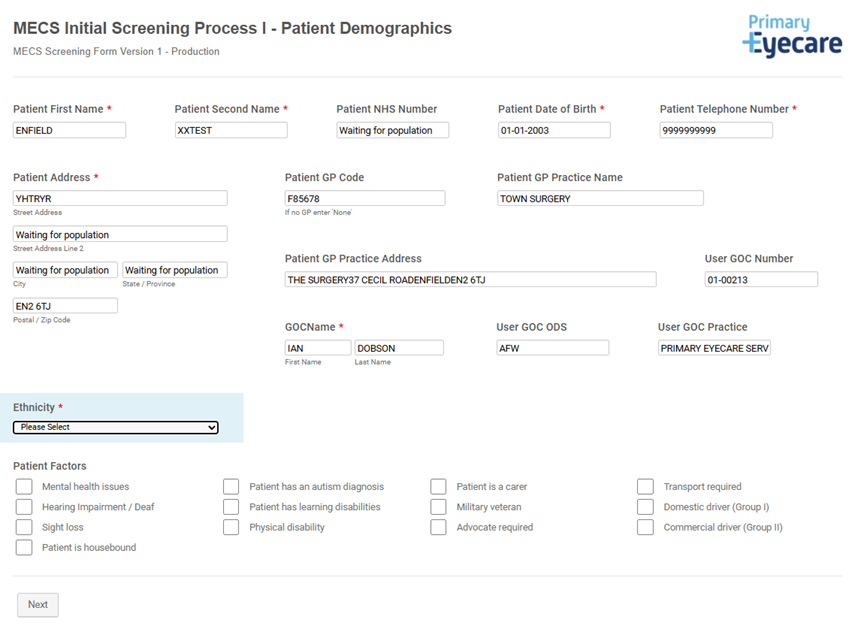
Next, collect the patients preferred contact number, consent for the ability for their record to be held and consent for communication with them via SMS, email, letter or phone.
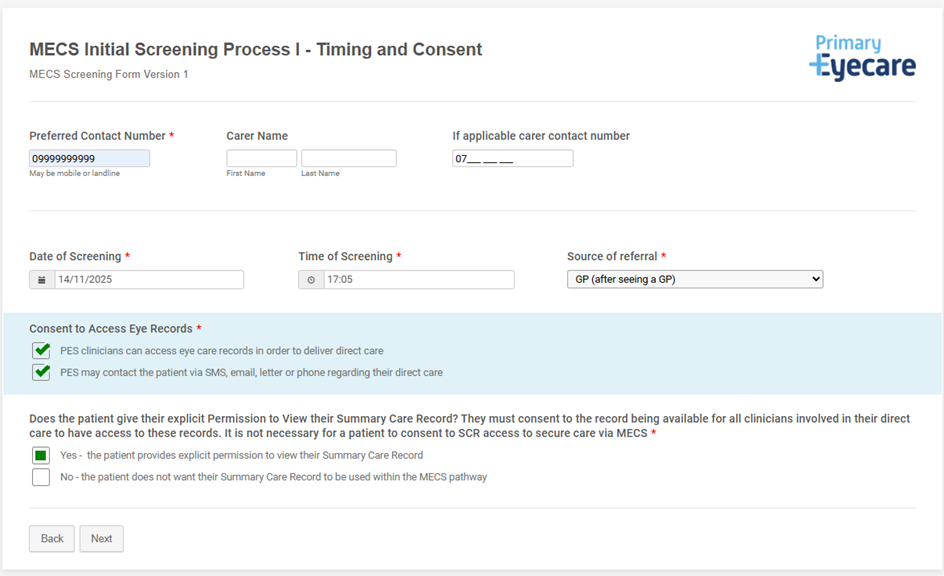
Following this, complete the source of referral and ask for the patient’s explicit consent to view their summary care record
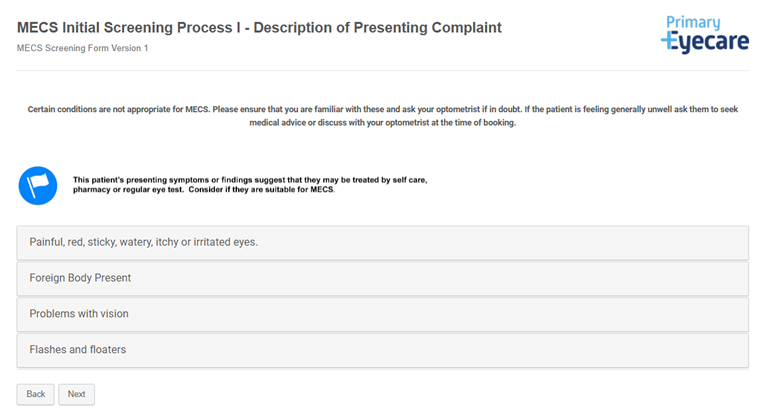
Then use the screening tool to help you decide on whether the patient is eligible for the MECS service along with the required urgency. The flag at the top will change colour and will suggest a screening outcome.
Screening Outcomes
These timescales are standardised. Please consult local guidance for exact timescales for your area.




The next page will suggest how quickly the patient needs to be seen, please be aware of local differences for timescales:
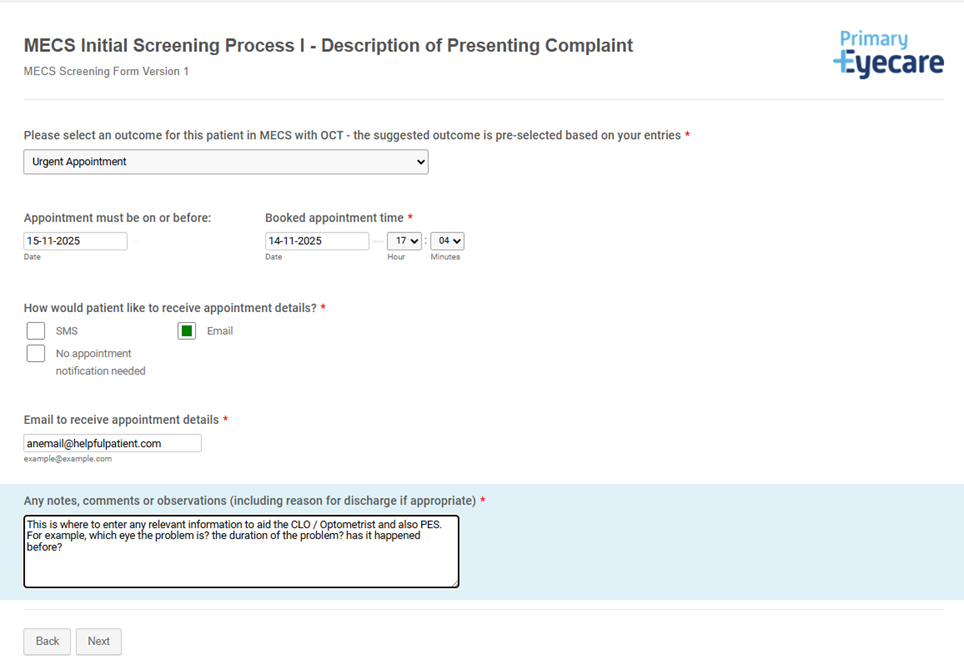
If the patient is seen outside of the recommended timescale, you will be asked to give the reason for this.
Using the Any notes comments or observation box please include which eye the problem relates to, duration of symptoms and any previous ocular history
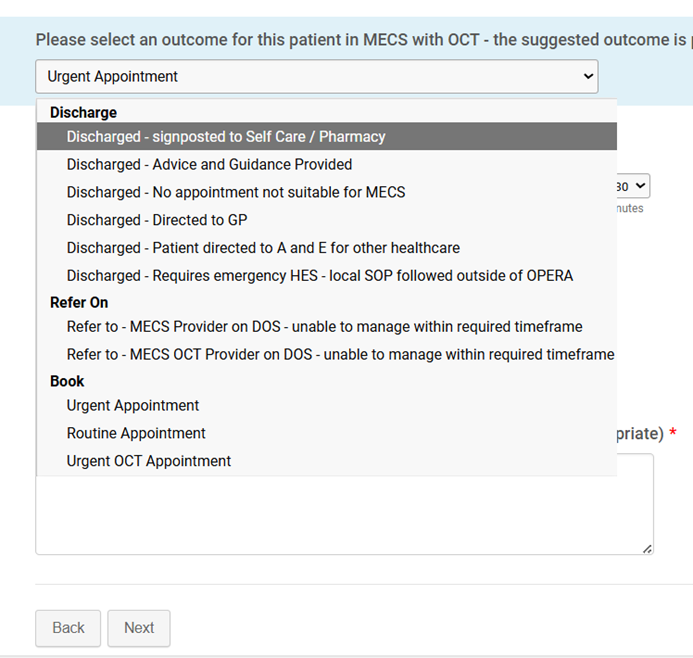
The appointment type options can be changed by clicking on the drop-down arrow:
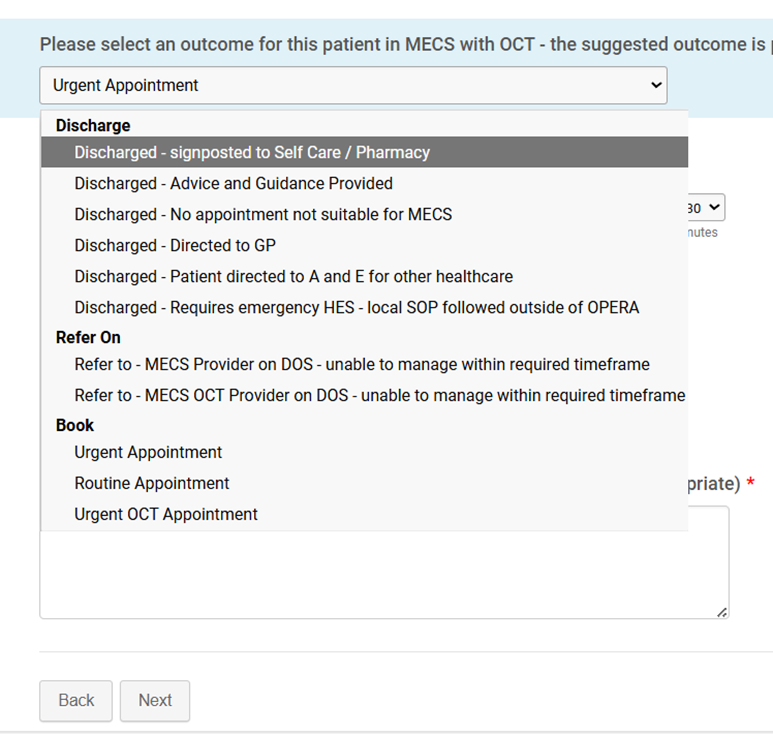
These options may appear differently and will depend on local services.
Completing the MECS assessment

Select the MECS episode by clicking on the yellow tab
Confirm the patient’s name, DOB and GP practice.
Complete the appointment details and verify the source of referral.
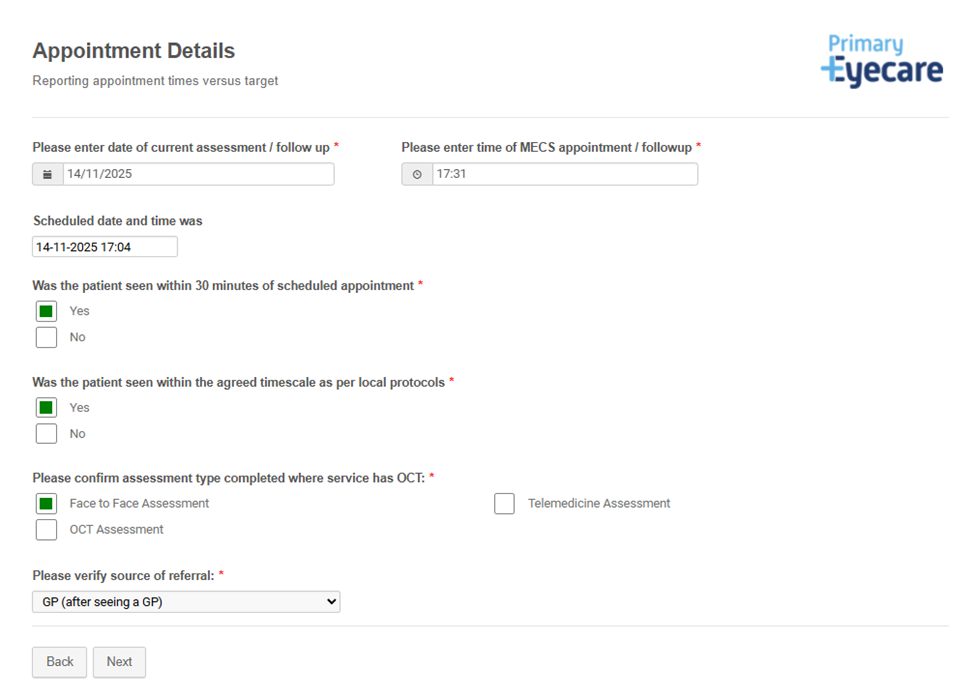
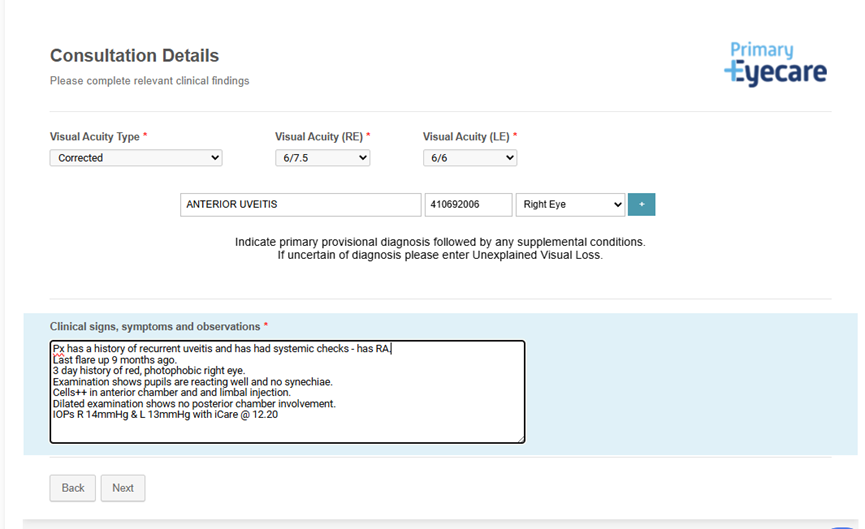
Complete the episode including mandatory details of visual acuity and the condition, along with the affected eye. There are two examples below:
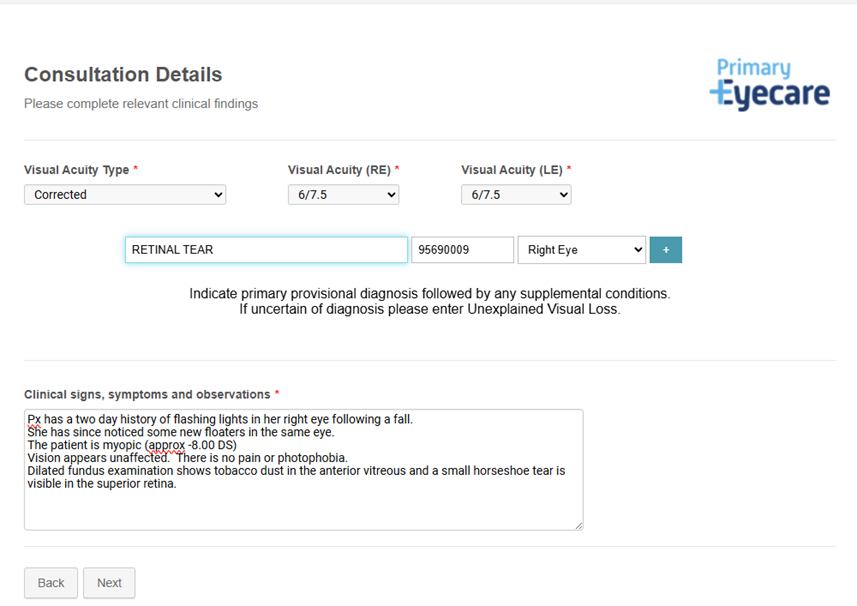
Record subjective assessment of the patient’s vision – same, better or worse
As you start to type in a diagnosis, you’ll notice a drop-down menu appears to help make your selection.
Further information about your diagnosis can be written in the comments below.
If your exact diagnosis is not there, please choose the closest equivalent.
As well as selecting which eye is affected, you can add multiple diagnoses by selecting “+” and finding a condition in the second selection box
The next box is for your ‘clinical signs, symptoms and observations’.
We advise you to treat this like you would a practice record and include all the information such as:
- H&S including duration of symptoms
- Visual Acuity
- Your provisional diagnosis
- Treatment plan
- Advice given
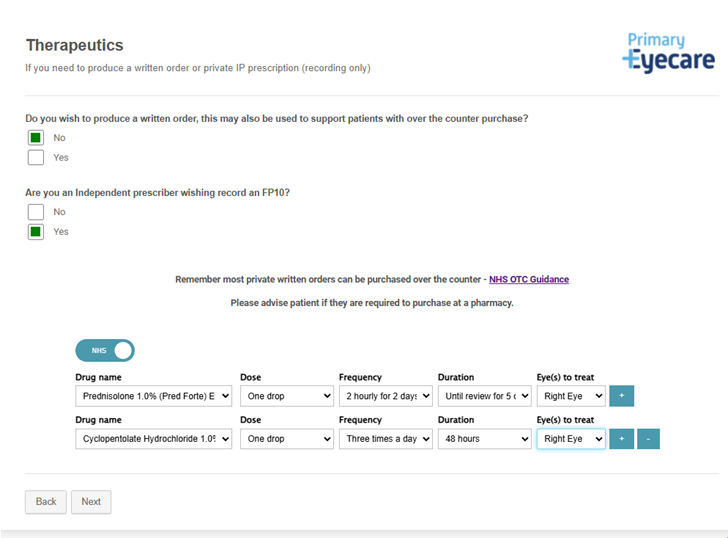
Therapeutics and written orders
It is possible to write a written order for the patient during a MECS episode. Please follow NHS guidance on over the counter (OTC) medications and local guides if more appropriate.
- Patient over the counter leaflet
- NHS England » Policy guidance: conditions for which over the counter items should not be routinely prescribed in primary care
The coloured slider can be changed from private to NHS. Some areas may have NHS provision such as a pharmacy service, or practice stock supply for under 2s. Please check local guidelines for more information.
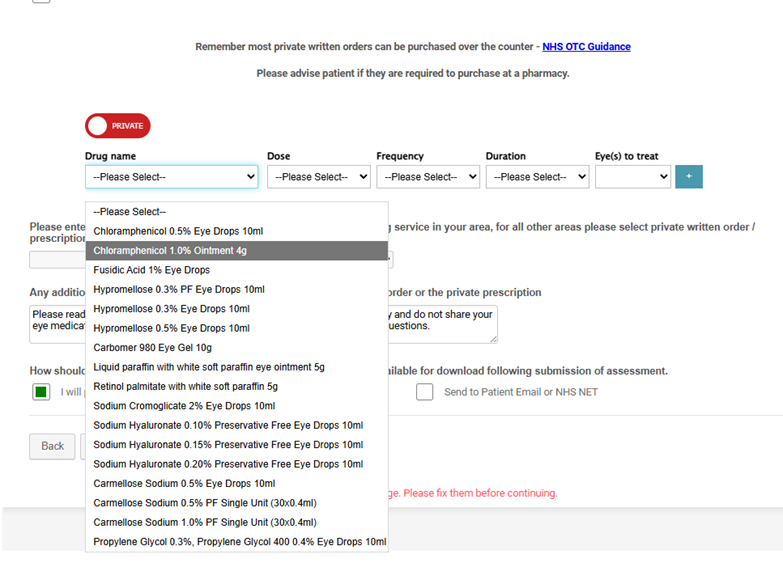
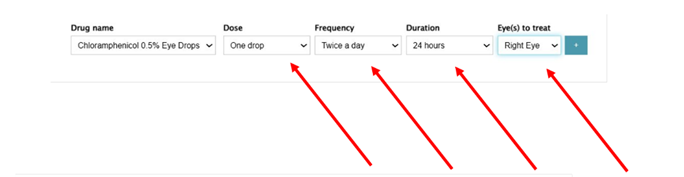
Select the drug, dose, frequency, duration and eyes to treat
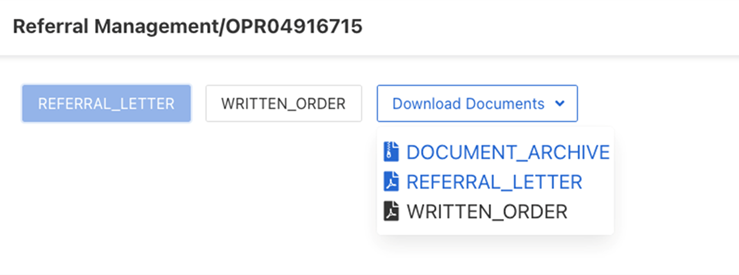
Once you’ve completed the episode, you can then download the prescription to print out by accessing ‘View documents’ and then selecting the ‘Written Order’ from the ‘Download Documents’ option.

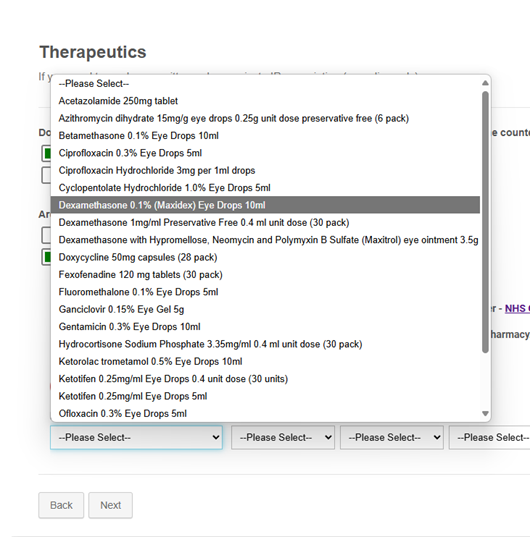
Therapeutics and Independent Prescribing
If there are IP services commissioned in your area further medication can be selected at this point. Please see this document for further information:
Independent Prescribing in PES Service - Guide for Practices and Practitioners - OPERA
Outcome and Actions
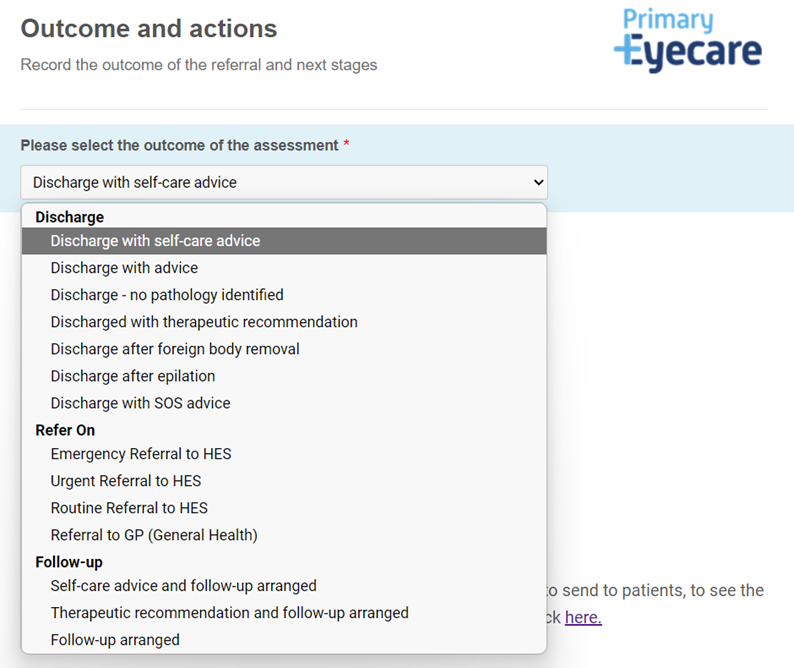
Select the most appropriate outcome from the drop-down list. In all cases, GPs will receive a notification of the outcome of the MECS episode.
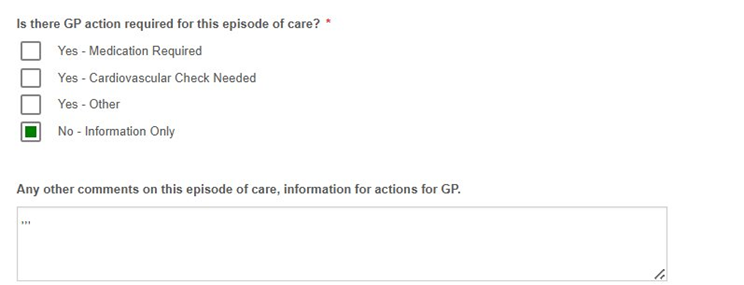
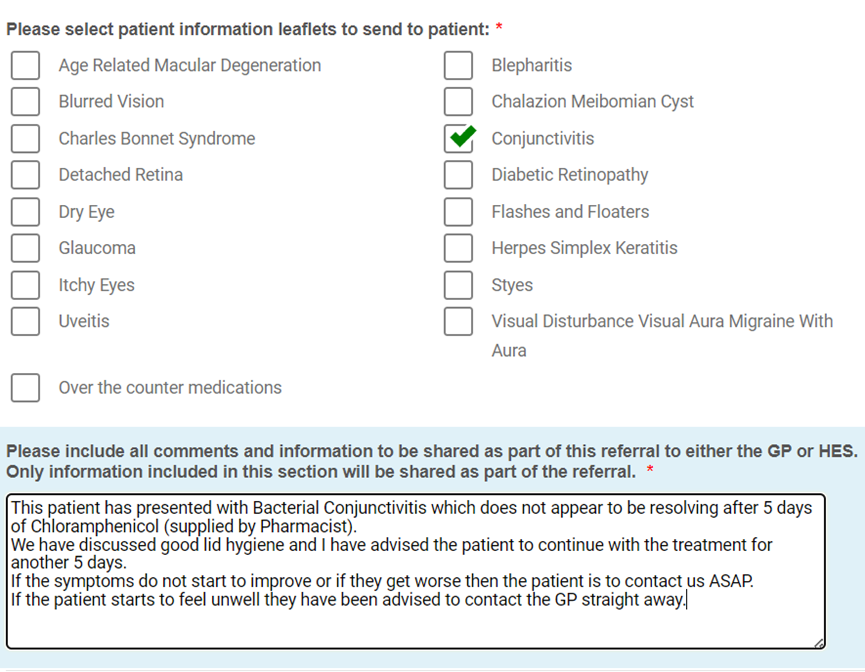
If you wish to send extra information to the GP (or wish to refer to both the hospital and the GP), select one of the top 3 'yes' options, the comments box at the bottom will be mandatory to complete to send to the GP.
The GP summary one pager will show 'GP action' as a heading
Ask the patient to complete a short and anonymous satisfaction survey. Once the mobile number is added on the screening form, it will automatically populate below.
Patient survey responses are an important feedback mechanism for continuous quality and improvement of the service, please encourage patients to complete this survey
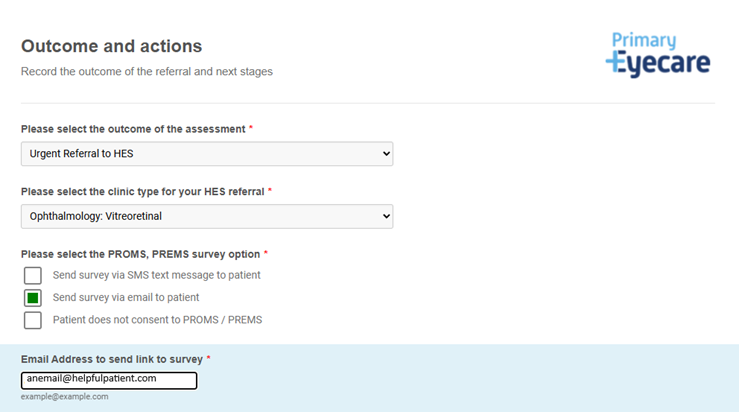
There is a selection of leaflets that can be sent to the patient using the SMS or email options as above.
Referring to a GP
If only referring to the GP, select outcome as ‘refer to GP (general health’ and then complete the referral by selecting the red tab (see below). More information can be found here https://help.optom-referrals.org/article/495-referring-to-a-gp. Please note – Opera will only send routine referrals to GPs, all urgent referrals need to be sent manually, outside of Opera.
Sending a referral
All referrals need to be actioned on the same day, by clicking the red referral tab. Check the details and go through to the provider page

Please ensure the full referral information is populated in the box which states ‘details for referral letter to hospital/GP’.
Please ensure you check and follow local protocols (e.g. some hospitals may require a telephone call ahead of referral).
The initial information populated here will be copied from the clinical comments section so please check and add any other information relevant to the referral.

You will note it presents providers closest to the patient’s postcode who provide the specific clinic.
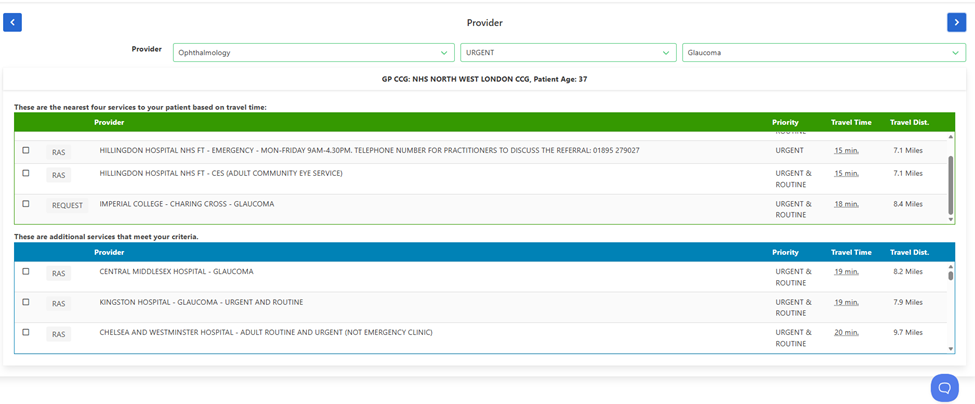
Once an appropriate provider is selected, on the next page you have the ability to add any further attachments or images if you believe useful. On the following page, select submit.
Once submitted, Opera will create a PDF and send the referral to the selected provider. The episode will turn green for completed and the referral status will be visible next to it.

If any images or documents have been uploaded, a ‘P’ sign will appear on the left hand side of the completed episode to confirm this. 
If a MECS service includes the use of OCT imaging the images MUST be added to the referral at this point.